> ## Documentation Index
> Fetch the complete documentation index at: https://docs.wandb.ai/llms.txt
> Use this file to discover all available pages before exploring further.
# Compare model performance using the Evaluation Playground
> Compare and evaluate model performance without code using Weave's Evaluation Playground with custom datasets and LLM judges.
The Evaluation Playground lets you access existing models and compare their performance using evaluation datasets and LLM scoring judges. You can start experimenting with and comparing your models without setting up any code. You can also save the models, scorers, and datasets you develop in the playground for later development and deployment.
For example, you can open the Evaluation Playground, add two models you've previously saved, and then evaluate their performance based on a new or previously saved question-answer style evaluation dataset. You can then add a new model in the interface, add system prompts to it, and run a new evaluation on all three models to see how they perform against one another.
 ## Set up an evaluation in the playground
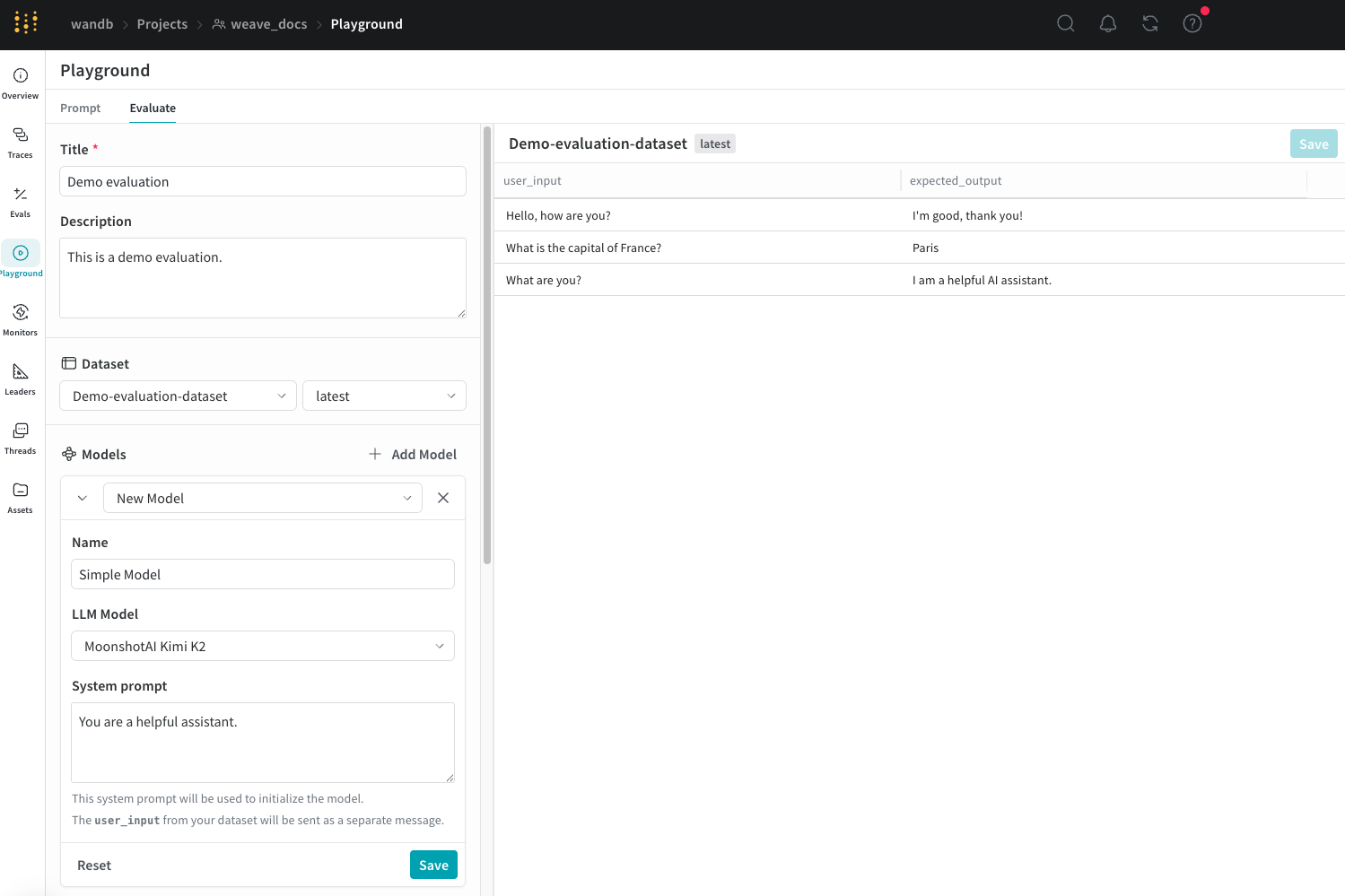
The following sections describe how to open the Evaluation Playground, choose a starting point for your evaluation, and configure the dataset, models, and scorers.
To set up an evaluation in the Evaluation Playground:
1. Open [the Weave UI](https://wandb.ai/wandb/quickstart_playground/weave/playground), and then open the project that you want to perform the evaluation in. The Traces page opens.
2. From the Traces page, click the **Playground** icon in the left menu, and then select the **Evaluate** tab on the Playground page. On the Evaluate page, you can either:
* **Load a demo example**: Loads a predefined configuration that evaluates the MoonshotAI Kimi K2 model on expected output and uses an LLM judge to determine its correctness. You can use this configuration to experiment with the interface.
* **Start from scratch**: Loads a blank configuration for you to build upon.
3. If you selected **Start from scratch**, add a descriptive title and description for your evaluation in the **Title** and **Description** fields.
Follow the instructions in the next sections to set up your datasets, models, and scorers.
### Add a dataset
[Datasets](../core-types/datasets) are organized collections of example user inputs and your expected responses from models. During evaluation, the playground feeds each test input into your model, collects the output, and then scores the output based on a metric you've selected, such as correctness. You can create a dataset in the UI, add an existing dataset already saved to your project, or upload a new dataset.
You can upload datasets in the following formats:
* `.csv`
* `.tsv`
* `.json`
* `.jsonl`
For more information about how to format and save datasets to Weave, see the Datasets documentation.
To add a dataset in the **Dataset** section:
1. Click the dropdown menu and then select either:
* **Start from scratch** to create a new dataset in the UI.
* **Upload a file** to upload a dataset from your local machine.
* An existing dataset already saved to your project.
2. Optional: Click **Save** to save the dataset to your project for later use.
After you select an option, the dataset is visible in the right pane of the UI and you can edit each field as necessary by clicking it. You can also add new rows to the dataset by clicking **Add row**.
You can only use the UI to edit new datasets.
It's also important to name the columns in your dataset `user_input` and `expected_output` so that the scorers can access the data.
### Add a model
In the context of Weave, [models](/weave/guides/core-types/models) are a combination of an AI model (such as GPT) and the environment (in this case the system prompt) that defines how the model operates during the evaluation. You can select existing models in your project or create new ones to evaluate, and you can add multiple models at once to evaluate them simultaneously with the same dataset and scorer. **You can only use models created using the playground feature.**
To add a model in the **Models** section of the Evaluation Playground:
1. Click **Add Model** and either select **New Model** or an existing model from the dropdown menu.
2. If you selected **New Model**, configure the following fields:
* **Name**: Add a descriptive name to your new model.
* **LLM Model**: Select a foundation model to build your new model on, such as OpenAI's GPT-4. You can select from a list of foundation models you've already configured access to, or you can add access to a foundation model by selecting **Add AI provider** and selecting a model. Adding a provider prompts you to enter your access credentials to that provider. See your provider's documentation to learn how to locate your API key, endpoints, and any additional configuration information you need to access the model using Weave.
* **System Prompt**: Provide the model instructions on how it should behave, for example, `You are a helpful assistant specializing in Python programming.` The `user_input` from your dataset is sent in a subsequent message and you don't need to include it in the system prompt.
If you choose an existing model, a new field appears beside the model's name that lets you select a version of the existing model, and there are no other additional fields to configure. To make changes to your existing model before or after evaluation, use the [Prompt Playground](../tools/playground).
3. Optional: Click **Save** to save the model to your project for later use.
4. Optional: To evaluate multiple models simultaneously, click **Add Model** again and add other models as necessary.
### Add scorers
[Scorers](../evaluation/scorers) use LLM judges to measure and assess the quality of AI model outputs. You can select existing scorers in your project or create new ones to evaluate your models with.
To add a scorer in the Evaluation Playground:
1. Click **Add Scorer** and then configure the following fields:
* **Name**: Add a descriptive name to your scorer.
* **Type**: Select how scores are output, either a boolean or a number. Boolean scorers return a binary `True` or `False` depending on whether the model's output met the judging parameters you set for it. Number scorers output a score between `0` and `1`, providing a general grade of how well the model's output met your judging parameters.
* **LLM-as-a-judge-model**: Select a foundation model to use as the scorer's judge. Similar to the LLM Model field in the **Models** section, you can select from foundation models you've already configured access to, or configure new access to foundation models.
* **Scoring Prompt**: Provide the LLM judge parameters for scoring the output. For example, to check for hallucinations, enter a scoring prompt similar to this:
```text theme={null}
Given the following context and answer, determine if the answer contains any information not supported by the context.
User input: {user_input}
Expected output: {expected_output}
Model Output: {output}
Is the model output correct?
```
You can use the fields from your datasets and responses as variables in the scoring prompt, such as `{user_input}`, `{expected_output}`, and `{output}`. To see a list of available variables, click **Insert variable** in the UI.
2. Optional: Click **Save** to save the scorer to your project for later use.
## Run the evaluation
With your datasets, models, and scorers configured, you're ready to run the evaluation and generate results.
* To run the evaluation in the Evaluation Playground, click **Run eval**.
Weave runs an individual evaluation for each model you've added and collects metrics on each request made using the dataset. Weave saves each of these evaluations in the **Evals** section for later review.
## Review evaluation results
After the evaluation completes, you can review the results to compare how each model performed against your dataset and scorers.
When the evaluation completes, the playground opens a report that displays metrics collected on each request made to your models.
## Set up an evaluation in the playground
The following sections describe how to open the Evaluation Playground, choose a starting point for your evaluation, and configure the dataset, models, and scorers.
To set up an evaluation in the Evaluation Playground:
1. Open [the Weave UI](https://wandb.ai/wandb/quickstart_playground/weave/playground), and then open the project that you want to perform the evaluation in. The Traces page opens.
2. From the Traces page, click the **Playground** icon in the left menu, and then select the **Evaluate** tab on the Playground page. On the Evaluate page, you can either:
* **Load a demo example**: Loads a predefined configuration that evaluates the MoonshotAI Kimi K2 model on expected output and uses an LLM judge to determine its correctness. You can use this configuration to experiment with the interface.
* **Start from scratch**: Loads a blank configuration for you to build upon.
3. If you selected **Start from scratch**, add a descriptive title and description for your evaluation in the **Title** and **Description** fields.
Follow the instructions in the next sections to set up your datasets, models, and scorers.
### Add a dataset
[Datasets](../core-types/datasets) are organized collections of example user inputs and your expected responses from models. During evaluation, the playground feeds each test input into your model, collects the output, and then scores the output based on a metric you've selected, such as correctness. You can create a dataset in the UI, add an existing dataset already saved to your project, or upload a new dataset.
You can upload datasets in the following formats:
* `.csv`
* `.tsv`
* `.json`
* `.jsonl`
For more information about how to format and save datasets to Weave, see the Datasets documentation.
To add a dataset in the **Dataset** section:
1. Click the dropdown menu and then select either:
* **Start from scratch** to create a new dataset in the UI.
* **Upload a file** to upload a dataset from your local machine.
* An existing dataset already saved to your project.
2. Optional: Click **Save** to save the dataset to your project for later use.
After you select an option, the dataset is visible in the right pane of the UI and you can edit each field as necessary by clicking it. You can also add new rows to the dataset by clicking **Add row**.
You can only use the UI to edit new datasets.
It's also important to name the columns in your dataset `user_input` and `expected_output` so that the scorers can access the data.
### Add a model
In the context of Weave, [models](/weave/guides/core-types/models) are a combination of an AI model (such as GPT) and the environment (in this case the system prompt) that defines how the model operates during the evaluation. You can select existing models in your project or create new ones to evaluate, and you can add multiple models at once to evaluate them simultaneously with the same dataset and scorer. **You can only use models created using the playground feature.**
To add a model in the **Models** section of the Evaluation Playground:
1. Click **Add Model** and either select **New Model** or an existing model from the dropdown menu.
2. If you selected **New Model**, configure the following fields:
* **Name**: Add a descriptive name to your new model.
* **LLM Model**: Select a foundation model to build your new model on, such as OpenAI's GPT-4. You can select from a list of foundation models you've already configured access to, or you can add access to a foundation model by selecting **Add AI provider** and selecting a model. Adding a provider prompts you to enter your access credentials to that provider. See your provider's documentation to learn how to locate your API key, endpoints, and any additional configuration information you need to access the model using Weave.
* **System Prompt**: Provide the model instructions on how it should behave, for example, `You are a helpful assistant specializing in Python programming.` The `user_input` from your dataset is sent in a subsequent message and you don't need to include it in the system prompt.
If you choose an existing model, a new field appears beside the model's name that lets you select a version of the existing model, and there are no other additional fields to configure. To make changes to your existing model before or after evaluation, use the [Prompt Playground](../tools/playground).
3. Optional: Click **Save** to save the model to your project for later use.
4. Optional: To evaluate multiple models simultaneously, click **Add Model** again and add other models as necessary.
### Add scorers
[Scorers](../evaluation/scorers) use LLM judges to measure and assess the quality of AI model outputs. You can select existing scorers in your project or create new ones to evaluate your models with.
To add a scorer in the Evaluation Playground:
1. Click **Add Scorer** and then configure the following fields:
* **Name**: Add a descriptive name to your scorer.
* **Type**: Select how scores are output, either a boolean or a number. Boolean scorers return a binary `True` or `False` depending on whether the model's output met the judging parameters you set for it. Number scorers output a score between `0` and `1`, providing a general grade of how well the model's output met your judging parameters.
* **LLM-as-a-judge-model**: Select a foundation model to use as the scorer's judge. Similar to the LLM Model field in the **Models** section, you can select from foundation models you've already configured access to, or configure new access to foundation models.
* **Scoring Prompt**: Provide the LLM judge parameters for scoring the output. For example, to check for hallucinations, enter a scoring prompt similar to this:
```text theme={null}
Given the following context and answer, determine if the answer contains any information not supported by the context.
User input: {user_input}
Expected output: {expected_output}
Model Output: {output}
Is the model output correct?
```
You can use the fields from your datasets and responses as variables in the scoring prompt, such as `{user_input}`, `{expected_output}`, and `{output}`. To see a list of available variables, click **Insert variable** in the UI.
2. Optional: Click **Save** to save the scorer to your project for later use.
## Run the evaluation
With your datasets, models, and scorers configured, you're ready to run the evaluation and generate results.
* To run the evaluation in the Evaluation Playground, click **Run eval**.
Weave runs an individual evaluation for each model you've added and collects metrics on each request made using the dataset. Weave saves each of these evaluations in the **Evals** section for later review.
## Review evaluation results
After the evaluation completes, you can review the results to compare how each model performed against your dataset and scorers.
When the evaluation completes, the playground opens a report that displays metrics collected on each request made to your models.
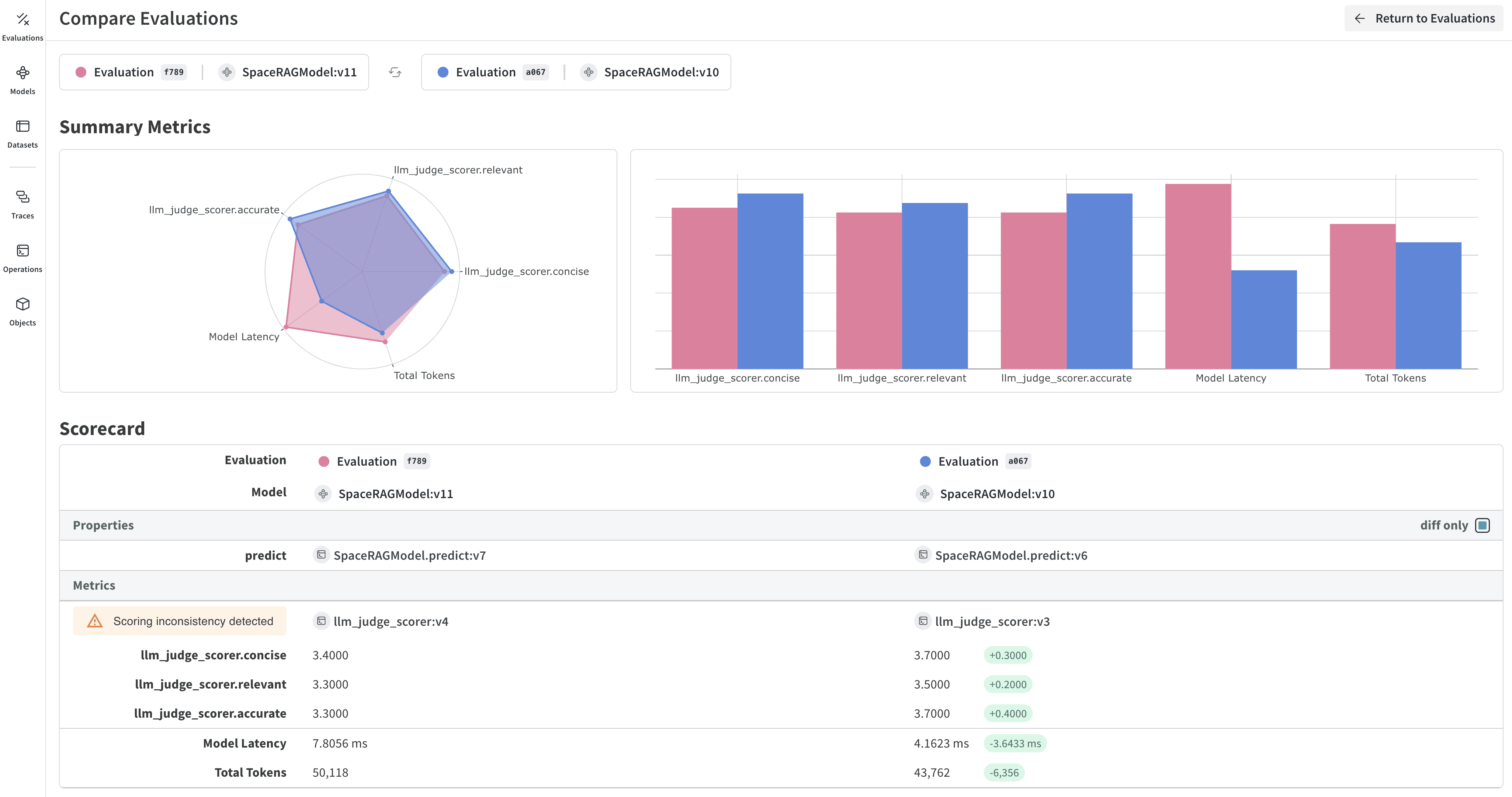 The **Dataset results** tab displays the input, expected output, the model's actual output, latency, token usage, and scoring results. You can click the IDs in the **Row** column to open a detailed view of the metrics for a specific set of requests. You can also use the display format buttons directly below the tabs to change the display format of the report's cells.
The **Summary** tab provides an overview of how each model performed with visual representations of the data.
For more information about how to open and compare evaluations, see [Evaluations](../core-types/evaluations).
The **Dataset results** tab displays the input, expected output, the model's actual output, latency, token usage, and scoring results. You can click the IDs in the **Row** column to open a detailed view of the metrics for a specific set of requests. You can also use the display format buttons directly below the tabs to change the display format of the report's cells.
The **Summary** tab provides an overview of how each model performed with visual representations of the data.
For more information about how to open and compare evaluations, see [Evaluations](../core-types/evaluations).