> ## Documentation Index
> Fetch the complete documentation index at: https://docs.wandb.ai/llms.txt
> Use this file to discover all available pages before exploring further.
# Collect and track datasets
> Organize, collect, track, and version examples for LLM application evaluation
Weave datasets help you organize, collect, track, and version examples for LLM application evaluation and side-by-side comparison. By following this page, you can build reusable, versioned collections of examples that you and your teammates can use to evaluate, iterate on, and compare LLM application behavior over time. You can create and interact with `Dataset`s programmatically and through the UI.
This page is for engineers and team members who want to manage evaluation data either in code or through the Weave UI. It describes:
* Basic `Dataset` operations in Python and TypeScript and how to get started.
* How to create a `Dataset` in Python and TypeScript from objects such as Weave [calls](../tracking/tracing).
* Available operations on a `Dataset` in the UI.
## Dataset quickstart
The following code samples demonstrate how to perform fundamental `Dataset` operations using Python and TypeScript. Using the SDKs, you can:
* Create a `Dataset`
* Publish the `Dataset`
* Retrieve the `Dataset`
* Access a specific example in the `Dataset`
Select a tab to see Python and TypeScript-specific code.
```python lines theme={null}
import weave
from weave import Dataset
# Initialize Weave
weave.init('intro-example')
# Create a dataset
dataset = Dataset(
name='grammar',
rows=[
{'id': '0', 'sentence': "He no likes ice cream.", 'correction': "He doesn't like ice cream."},
{'id': '1', 'sentence': "She goed to the store.", 'correction': "She went to the store."},
{'id': '2', 'sentence': "They plays video games all day.", 'correction': "They play video games all day."}
]
)
# Publish the dataset
weave.publish(dataset)
# Retrieve the dataset
dataset_ref = weave.ref('grammar').get()
# Access a specific example
example_label = dataset_ref.rows[2]['sentence']
```
```typescript twoslash lines theme={null}
// @noErrors
import * as weave from 'weave';
// Initialize Weave
const client = await weave.init('intro-example');
// Create a dataset
const dataset = new weave.Dataset({
name: 'grammar',
rows: [
{id: '0', sentence: "He no likes ice cream.", correction: "He doesn't like ice cream."},
{id: '1', sentence: "She goed to the store.", correction: "She went to the store."},
{id: '2', sentence: "They plays video games all day.", correction: "They play video games all day."}
]
});
// Publish the dataset
const ref = await dataset.save();
// Retrieve the dataset
const retrievedDataset = await client.get(ref);
// Alternatively, retrieve using a URI string
const datasetUri = 'weave:///my-entity/intro-example/object/grammar:abc123def456';
const refFromUri = weave.ObjectRef.fromUri(datasetUri);
const retrievedDatasetFromUri = await client.get(refFromUri);
// Access a specific example
const exampleLabel = retrievedDataset.getRow(2).sentence;
```
## Create a dataset from other objects
This section shows how to build a `Dataset` from data you already have, such as recorded Weave calls or existing tabular data, so you don't have to manually re-enter examples.
In Python, `Dataset`s can also be constructed from common Weave objects like [calls](../tracking/tracing), and Python objects like `pandas.DataFrame`s. This feature is useful if you want to create an example `Dataset` from specific examples.
### Weave call
To create a `Dataset` from one or more Weave calls, retrieve the call objects and add them to a list in the `from_calls` method.
```python lines theme={null}
@weave.op
def model(task: str) -> str:
return f"Now working on {task}"
res1, call1 = model.call(task="fetch")
res2, call2 = model.call(task="parse")
dataset = Dataset.from_calls([call1, call2])
# Now you can use the dataset to evaluate the model, etc.
```
### Pandas DataFrame
To create a `Dataset` from a Pandas `DataFrame` object, use the `from_pandas` method. To convert the `Dataset` back, use `to_pandas`.
```python lines theme={null}
import pandas as pd
df = pd.DataFrame([
{'id': '0', 'sentence': "He no likes ice cream.", 'correction': "He doesn't like ice cream."},
{'id': '1', 'sentence': "She goed to the store.", 'correction': "She went to the store."},
{'id': '2', 'sentence': "They plays video games all day.", 'correction': "They play video games all day."}
])
dataset = Dataset.from_pandas(df)
df2 = dataset.to_pandas()
assert df.equals(df2)
```
### Hugging Face Datasets
To create a `Dataset` from a Hugging Face `datasets.Dataset` or `datasets.DatasetDict` object, first ensure you have the necessary dependencies installed:
```bash theme={null}
pip install weave[huggingface]
```
Then, use the `from_hf` method. If you provide a `DatasetDict` with multiple splits (like `train`, `test`, `validation`), Weave automatically uses the `train` split and issues a warning. If the `train` split isn't present, Weave raises an error. You can provide a specific split directly (for example, `hf_dataset_dict['test']`).
To convert a `weave.Dataset` back to a Hugging Face `Dataset`, use the `to_hf` method.
```python lines theme={null}
# Ensure datasets is installed: pip install datasets
from datasets import Dataset as HFDataset, DatasetDict
# Example with HF Dataset
hf_rows = [
{'id': '0', 'sentence': "He no likes ice cream.", 'correction': "He doesn't like ice cream."},
{'id': '1', 'sentence': "She goed to the store.", 'correction': "She went to the store."},
]
hf_ds = HFDataset.from_list(hf_rows)
weave_ds_from_hf = Dataset.from_hf(hf_ds)
# Convert back to HF Dataset
converted_hf_ds = weave_ds_from_hf.to_hf()
# Example with HF DatasetDict (uses 'train' split by default)
hf_dict = DatasetDict({
'train': HFDataset.from_list(hf_rows),
'test': HFDataset.from_list([{'id': '2', 'sentence': "Test sentence", 'correction': "Test correction"}])
})
# This issues a warning and uses the 'train' split
weave_ds_from_dict = Dataset.from_hf(hf_dict)
# Providing a specific split
weave_ds_from_test_split = Dataset.from_hf(hf_dict['test'])
```
```plaintext theme={null}
This feature isn't currently available in TypeScript yet.
```
## Create, edit, and delete a dataset in the UI
You can create, edit, and delete `Dataset`s in the UI. Creating datasets in the Weave UI lets you and non-engineering members of your team develop and curate sharable datasets containing examples, questions, and other agent-testing data without editing code.
The following procedures walk through each of these tasks in the UI. Use them when you want to manage evaluation data alongside the traces it came from, rather than from a notebook or script.
### Create a new dataset
The following procedure creates a new `Dataset` from one or more existing calls in your Weave project. After you complete it, you have a published `Dataset` you can reference in evaluations and share with your team.
1. Navigate to the Weave project you want to edit.
2. In the sidebar, select **Traces**.
3. Select one or more calls to create a new `Dataset` for.
4. In the upper right-hand menu, click the **Add selected rows to a dataset** icon (located next to the trashcan icon).
5. From the **Choose a dataset** dropdown, select **Create new**. The **Dataset name** field appears.
6. In the **Dataset name** field, enter a name for your dataset. Options to **Configure dataset fields** appear.
Dataset names must start with a letter or number and can only contain letters, numbers, hyphens, and underscores.
7. Optional: In **Configure dataset fields**, select the fields from your calls to include in the dataset.
* You can customize the column names for each selected field.
* You can select a subset of fields to include in the new `Dataset`, or deselect all fields.
8. Once you've configured the dataset fields, click **Next**. A preview of your new `Dataset` appears.
9. Optional: Click any of the editable fields in your **Dataset** to edit the entry.
10. Click **Create dataset**. Weave creates your new dataset.
11. In the confirmation popup, click **View the dataset** to view the new `Dataset`. Alternatively, go to the **Datasets** tab.
### Edit a dataset
Use the following procedure to add new rows to an existing `Dataset` and publish a new version. Editing in the UI is helpful when you want to extend or correct evaluation data without changing code.
1. Navigate to the Weave project containing the `Dataset` you want to edit.
2. From the sidebar, select **Datasets**. Your available `Dataset`s display.
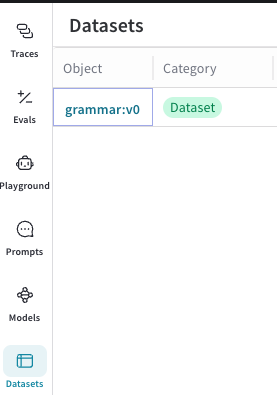 3. In the **Object** column, click the name and version of the `Dataset` you want to edit. A pop-out modal showing `Dataset` information like name, version, author, and `Dataset` rows displays.
 4. In the upper right-hand corner of the modal, click the **Edit dataset** button (the pencil icon). An **+ Add row** button displays at the bottom of the modal.
 5. Click **+ Add row**. A new row displays at the top of your existing `Dataset` rows, indicating that you can add a new row to the `Dataset`.
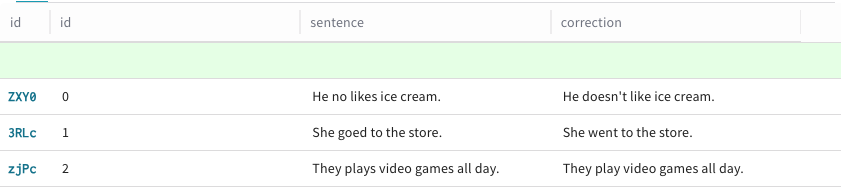 6. To add data to a new row, click the desired column within that row. You can't edit the default **id** column in a `Dataset` row, because Weave assigns it automatically upon creation. An editing modal appears with **Text**, **Code**, and **Diff** options for formatting.
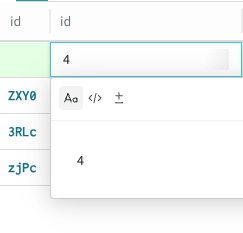 7. Repeat step 6 for each column that you want to add data to in the new row.
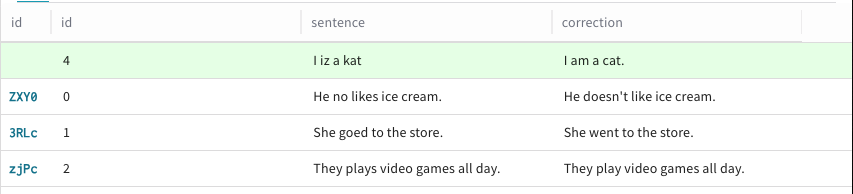 8. Repeat step 5 for each row that you want to add to the `Dataset`.
9. When you're done editing, publish your `Dataset` by clicking **Publish** in the upper right-hand corner of the modal. Alternatively, if you don't want to publish your changes, click **Cancel**.
8. Repeat step 5 for each row that you want to add to the `Dataset`.
9. When you're done editing, publish your `Dataset` by clicking **Publish** in the upper right-hand corner of the modal. Alternatively, if you don't want to publish your changes, click **Cancel**.
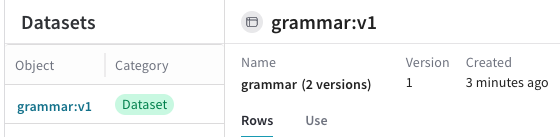
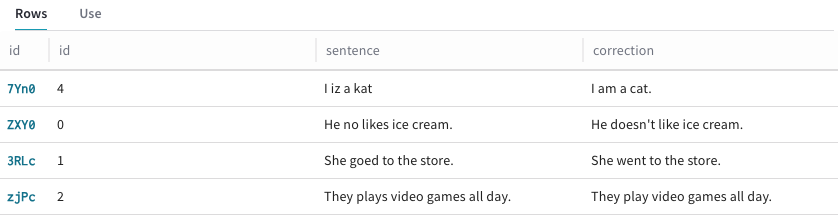
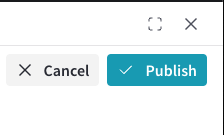 Once published, the new version of the `Dataset` with updated rows is available in the UI.
 ### Delete a dataset
Use the following procedure when you want to remove a `Dataset` you no longer need from your Weave project.
1. Navigate to the Weave project containing the `Dataset` you want to edit.
2. From the sidebar, select **Datasets**. Your available `Dataset`s display.
3. In the **Object** column, click the name and version of the `Dataset` you want to delete. A pop-out modal showing `Dataset` information like name, version, author, and `Dataset` rows displays.
4. In the upper right-hand corner of the modal, click the trashcan icon.
A pop-up modal prompting you to confirm `Dataset` deletion displays.
### Delete a dataset
Use the following procedure when you want to remove a `Dataset` you no longer need from your Weave project.
1. Navigate to the Weave project containing the `Dataset` you want to edit.
2. From the sidebar, select **Datasets**. Your available `Dataset`s display.
3. In the **Object** column, click the name and version of the `Dataset` you want to delete. A pop-out modal showing `Dataset` information like name, version, author, and `Dataset` rows displays.
4. In the upper right-hand corner of the modal, click the trashcan icon.
A pop-up modal prompting you to confirm `Dataset` deletion displays.
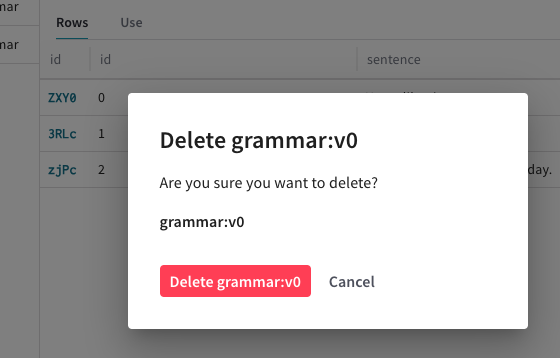 5. In the pop-up modal, click **Delete** to delete the `Dataset`. Alternatively, click **Cancel** if you don't want to delete the `Dataset`.
The `Dataset` is deleted and no longer visible in the **Datasets** tab in your Weave dashboard.
### Add a new agent trace to a dataset
To add agent turns and tool calls to a `Dataset`, see [Add agent messages to a dataset](/weave/guides/tracking/view-agent-activity#add-agent-messages-to-a-dataset).
### Add a new trace to a dataset
To add traces generated from Ops and Calls (using the `@weave.op` decorator) to a `Dataset`:
1. Navigate to the Weave project you want to edit.
2. In the sidebar, select **Traces**.
3. Select one or more calls with `Datasets` for which you want to create new examples.
4. In the upper right-hand menu, click the **Add selected rows to a dataset** icon (located next to the trashcan icon). Optionally, toggle **Show latest versions** to off to display all versions of all available datasets.
5. From the **Choose a dataset** dropdown, select the `Dataset` you want to add examples to. Options to **Configure field mapping** display.
6. Optional: In **Configure field mapping**, you can adjust the mapping of fields from your calls to the corresponding dataset columns.
7. Once you've configured field mappings, click **Next**. A preview of your new `Dataset` appears.
8. In the empty row (green), add your new example values. The **id** field isn't editable, and Weave creates it automatically.
9. Click **Add to dataset**. Alternatively, to return to the **Configure field mapping** screen, click **Back**.
10. In the confirmation popup, click **View the dataset** to see the changes. Alternatively, navigate to the **Datasets** tab to view the updates to your `Dataset`.
## Other dataset operations
This section covers additional SDK operations that are useful once you already have a `Dataset` to work with.
### Select rows
You can select specific rows from a `Dataset` by their index using the `select` method. This is useful for creating subsets of your data, such as when you want to evaluate against a smaller slice of examples.
```python lines theme={null}
import weave
from weave import Dataset
# Create a sample dataset
dataset = Dataset(rows=[
{'col_a': 1, 'col_b': 'x'},
{'col_a': 2, 'col_b': 'y'},
{'col_a': 3, 'col_b': 'z'},
{'col_a': 4, 'col_b': 'w'},
])
# Select rows at index 0 and 2
subset_dataset = dataset.select([0, 2])
# Now subset_dataset contains only the first and third rows
# print(list(subset_dataset))
# Output: [{'col_a': 1, 'col_b': 'x'}, {'col_a': 3, 'col_b': 'z'}]
```
```plaintext theme={null}
This feature isn't currently available in TypeScript yet.
```
5. In the pop-up modal, click **Delete** to delete the `Dataset`. Alternatively, click **Cancel** if you don't want to delete the `Dataset`.
The `Dataset` is deleted and no longer visible in the **Datasets** tab in your Weave dashboard.
### Add a new agent trace to a dataset
To add agent turns and tool calls to a `Dataset`, see [Add agent messages to a dataset](/weave/guides/tracking/view-agent-activity#add-agent-messages-to-a-dataset).
### Add a new trace to a dataset
To add traces generated from Ops and Calls (using the `@weave.op` decorator) to a `Dataset`:
1. Navigate to the Weave project you want to edit.
2. In the sidebar, select **Traces**.
3. Select one or more calls with `Datasets` for which you want to create new examples.
4. In the upper right-hand menu, click the **Add selected rows to a dataset** icon (located next to the trashcan icon). Optionally, toggle **Show latest versions** to off to display all versions of all available datasets.
5. From the **Choose a dataset** dropdown, select the `Dataset` you want to add examples to. Options to **Configure field mapping** display.
6. Optional: In **Configure field mapping**, you can adjust the mapping of fields from your calls to the corresponding dataset columns.
7. Once you've configured field mappings, click **Next**. A preview of your new `Dataset` appears.
8. In the empty row (green), add your new example values. The **id** field isn't editable, and Weave creates it automatically.
9. Click **Add to dataset**. Alternatively, to return to the **Configure field mapping** screen, click **Back**.
10. In the confirmation popup, click **View the dataset** to see the changes. Alternatively, navigate to the **Datasets** tab to view the updates to your `Dataset`.
## Other dataset operations
This section covers additional SDK operations that are useful once you already have a `Dataset` to work with.
### Select rows
You can select specific rows from a `Dataset` by their index using the `select` method. This is useful for creating subsets of your data, such as when you want to evaluate against a smaller slice of examples.
```python lines theme={null}
import weave
from weave import Dataset
# Create a sample dataset
dataset = Dataset(rows=[
{'col_a': 1, 'col_b': 'x'},
{'col_a': 2, 'col_b': 'y'},
{'col_a': 3, 'col_b': 'z'},
{'col_a': 4, 'col_b': 'w'},
])
# Select rows at index 0 and 2
subset_dataset = dataset.select([0, 2])
# Now subset_dataset contains only the first and third rows
# print(list(subset_dataset))
# Output: [{'col_a': 1, 'col_b': 'x'}, {'col_a': 3, 'col_b': 'z'}]
```
```plaintext theme={null}
This feature isn't currently available in TypeScript yet.
```