> ## Documentation Index
> Fetch the complete documentation index at: https://docs.wandb.ai/llms.txt
> Use this file to discover all available pages before exploring further.
> Collaborate and share W&B Reports with peers, coworkers, and your team.
# Collaborate on reports
This page describes ways to collaborate on W\&B Reports with your team so you can share results, gather feedback, and keep important reports accessible. You can share a report, edit it collaboratively, add comments, or star it for quick access.
## Share a report
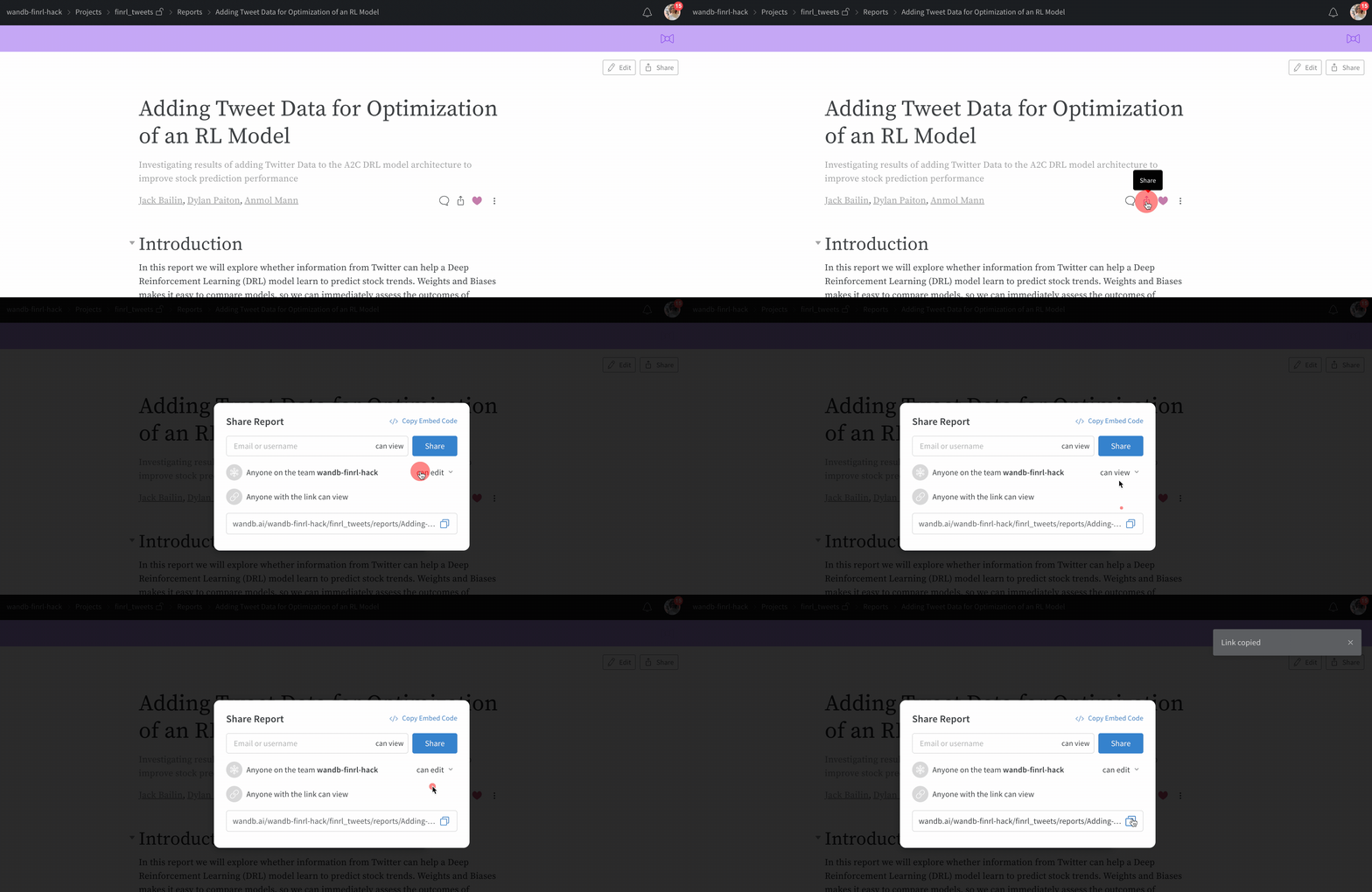
Share a report when you want to give peers, coworkers, or teammates access to view or edit its contents. When viewing a report, click **Share**. You can share a report in one of the following ways:
* To share a link to the report with an email address or a username, click **Invite**. Enter an email address or username, select **Can view** or **Can edit**, then click **Invite**. If you share by email, the email address doesn't need to be a member of your organization or team.
* To generate a sharing link instead, click **Share**. Adjust the permissions for the link, then click **Copy report link**. Share the link with the member.
When viewing the report, click a panel to open it in full-screen mode. If you copy the URL from the browser and share it with another user, the panel opens in full-screen mode when they access the link.
 ## Edit a report
Reports support collaborative editing so that team members can contribute updates without overwriting each other's work. Multiple team members can edit the same report and publish changes when they're ready. When any team member clicks **Edit** to begin editing the report, W\&B automatically saves a draft. Select **Save to report** to publish your changes.
If an edit conflict occurs, such as when two team members edit the report at once, a warning notification helps you resolve any conflicts.
## Comment on a report
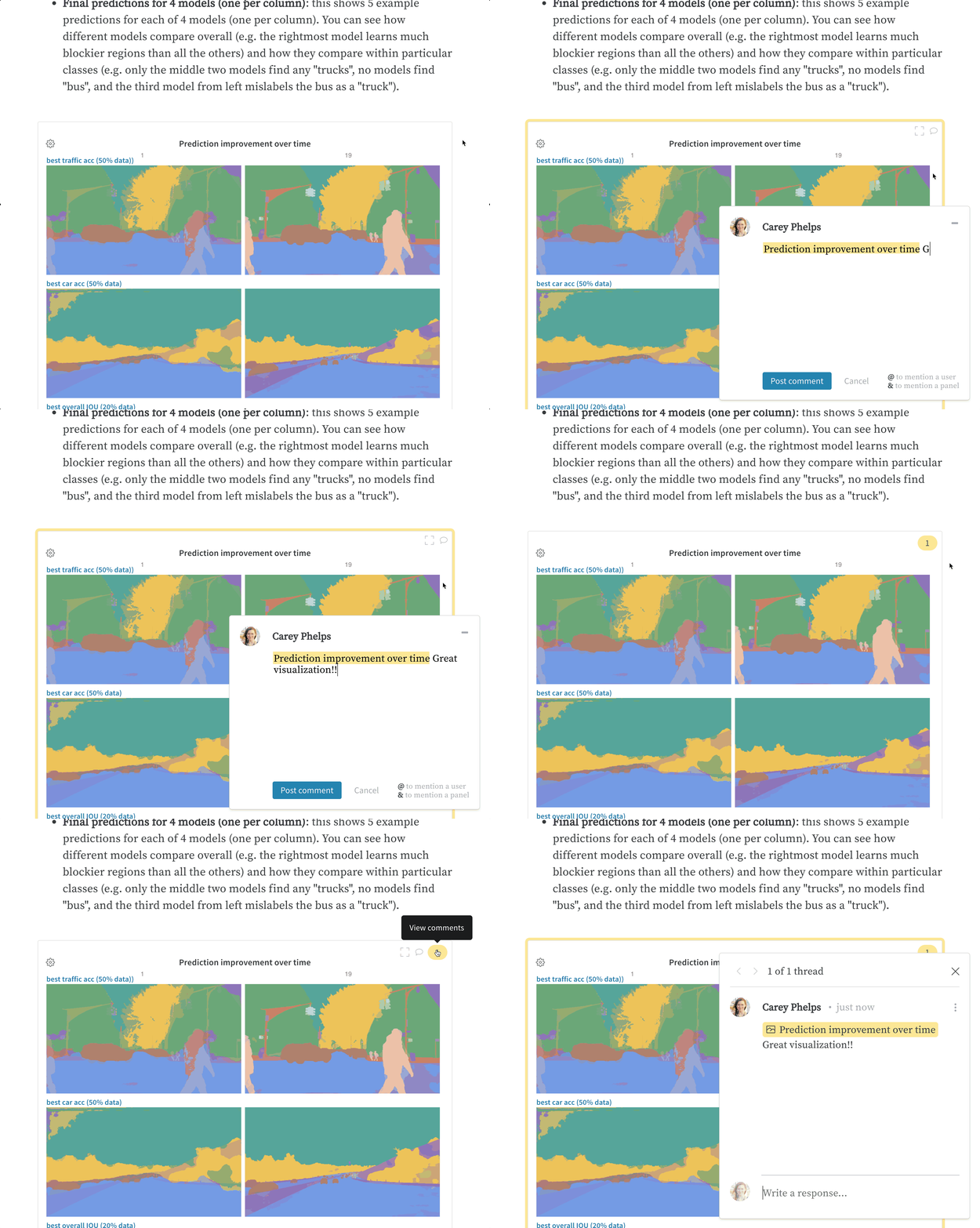
Use comments to give feedback or ask questions about a report or one of its panels without modifying its contents. To leave a comment on a report, click **Comment**.
To comment directly on a panel, hover over the panel, then click the comment button ().
## Edit a report
Reports support collaborative editing so that team members can contribute updates without overwriting each other's work. Multiple team members can edit the same report and publish changes when they're ready. When any team member clicks **Edit** to begin editing the report, W\&B automatically saves a draft. Select **Save to report** to publish your changes.
If an edit conflict occurs, such as when two team members edit the report at once, a warning notification helps you resolve any conflicts.
## Comment on a report
Use comments to give feedback or ask questions about a report or one of its panels without modifying its contents. To leave a comment on a report, click **Comment**.
To comment directly on a panel, hover over the panel, then click the comment button ().
 ## Star a report
Star a report to mark it as a favorite and make it easier to find later. Click the open star icon () at the top of a report to add it to your favorites. To remove the star, click the filled star icon (). When viewing your team's list of reports, click the open star in a report's row to add it to your favorites. Starred reports appear at the top of the list.
From the list of reports, you can see how many members have starred each report to gauge its popularity.
## Star a report
Star a report to mark it as a favorite and make it easier to find later. Click the open star icon () at the top of a report to add it to your favorites. To remove the star, click the filled star icon (). When viewing your team's list of reports, click the open star in a report's row to add it to your favorites. Starred reports appear at the top of the list.
From the list of reports, you can see how many members have starred each report to gauge its popularity.