> ## Documentation Index
> Fetch the complete documentation index at: https://docs.wandb.ai/llms.txt
> Use this file to discover all available pages before exploring further.
> Use lineage graphs to visualize a linked artifact's history and audit a collection's history.
# Lineage graphs and audit history
Use a lineage graph to visualize a linked artifact's history. Audit a collection's history to track changes made to artifacts in that collection.
## Lineage graphs
Within a collection in the W\&B Registry, you can view a history of the artifacts that an ML experiment uses. This history is called a *lineage graph*.
A lineage graph shows:
* Artifacts used as [inputs to a run](/models/artifacts/explore-and-traverse-an-artifact-graph#track-the-input-of-a-run).
* Artifacts created as [outputs from a run](/models/artifacts/explore-and-traverse-an-artifact-graph#track-the-output-of-a-run).
In other words, a lineage graph shows the input and output of a run.
For example, the following image shows a typical lineage graph for artifacts created and used throughout an ML experiment:
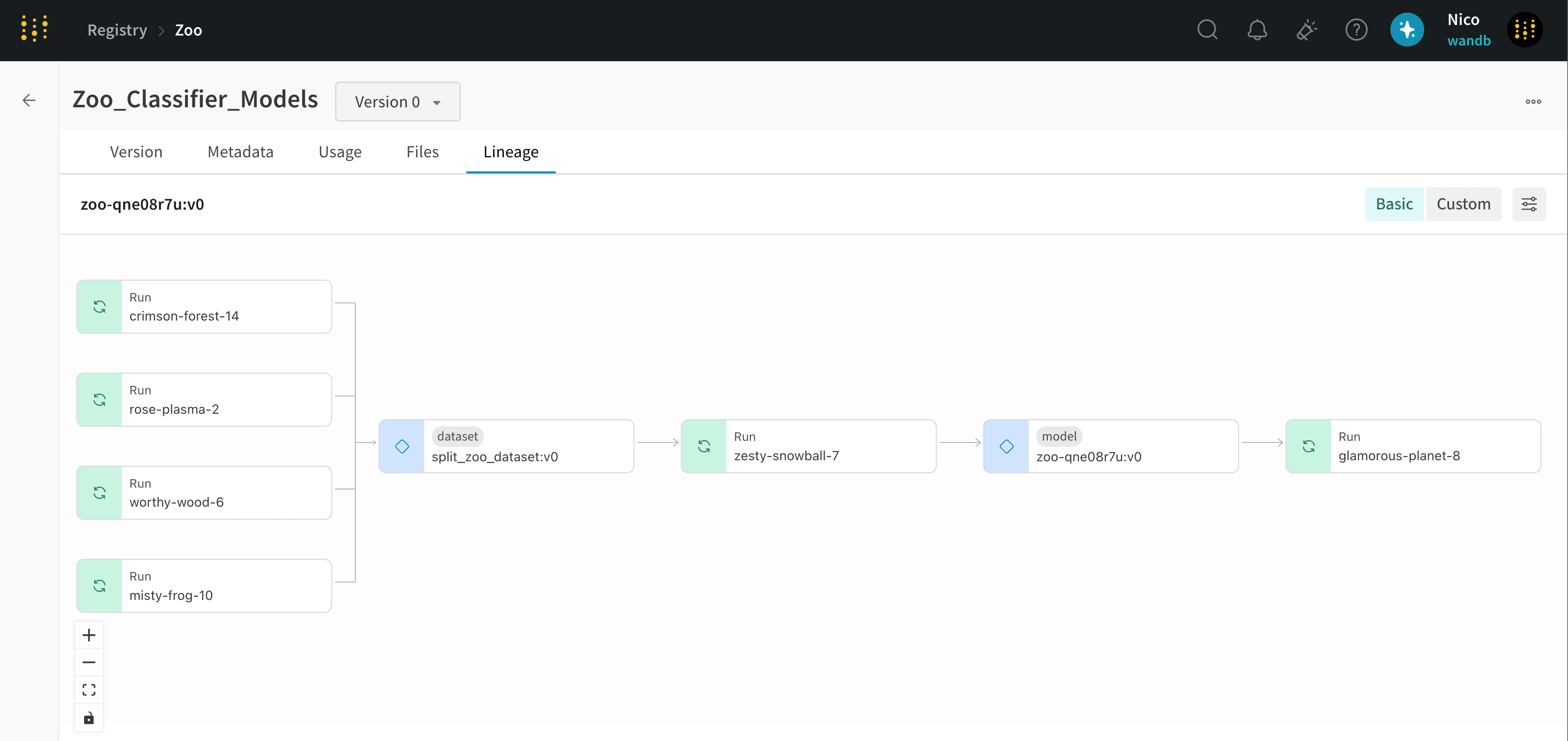 From left to right, the image shows:
1. Multiple runs log the `split_zoo_dataset:v0` artifact.
2. The "zesty-snowball-7" run uses the `split_zoo_dataset:v0` artifact for training.
3. The output of the "zesty-snowball-7" run is a model artifact called `zoo-qne08r7u:v0`.
4. A run called "glamorous-planet-8" uses the model artifact `zoo-qne08r7u:v0` to evaluate the model.
To view a lineage graph for an artifact in a collection:
1. Navigate to the W\&B Registry.
2. Select the collection that contains the artifact.
3. From the dropdown, select the artifact version you want to view its lineage graph.
4. Select the **Lineage** tab.
5. Select a node to view detailed information about the run or artifact.
See [Enable lineage graph tracking](/models/artifacts/explore-and-traverse-an-artifact-graph#enable-lineage-graph-tracking) to learn how to track the input and output of a run using the W\&B Python SDK.
The following image shows the expanded detailed view of a run (`zesty-snowball-7`) when you select a node in the lineage graph:
From left to right, the image shows:
1. Multiple runs log the `split_zoo_dataset:v0` artifact.
2. The "zesty-snowball-7" run uses the `split_zoo_dataset:v0` artifact for training.
3. The output of the "zesty-snowball-7" run is a model artifact called `zoo-qne08r7u:v0`.
4. A run called "glamorous-planet-8" uses the model artifact `zoo-qne08r7u:v0` to evaluate the model.
To view a lineage graph for an artifact in a collection:
1. Navigate to the W\&B Registry.
2. Select the collection that contains the artifact.
3. From the dropdown, select the artifact version you want to view its lineage graph.
4. Select the **Lineage** tab.
5. Select a node to view detailed information about the run or artifact.
See [Enable lineage graph tracking](/models/artifacts/explore-and-traverse-an-artifact-graph#enable-lineage-graph-tracking) to learn how to track the input and output of a run using the W\&B Python SDK.
The following image shows the expanded detailed view of a run (`zesty-snowball-7`) when you select a node in the lineage graph:
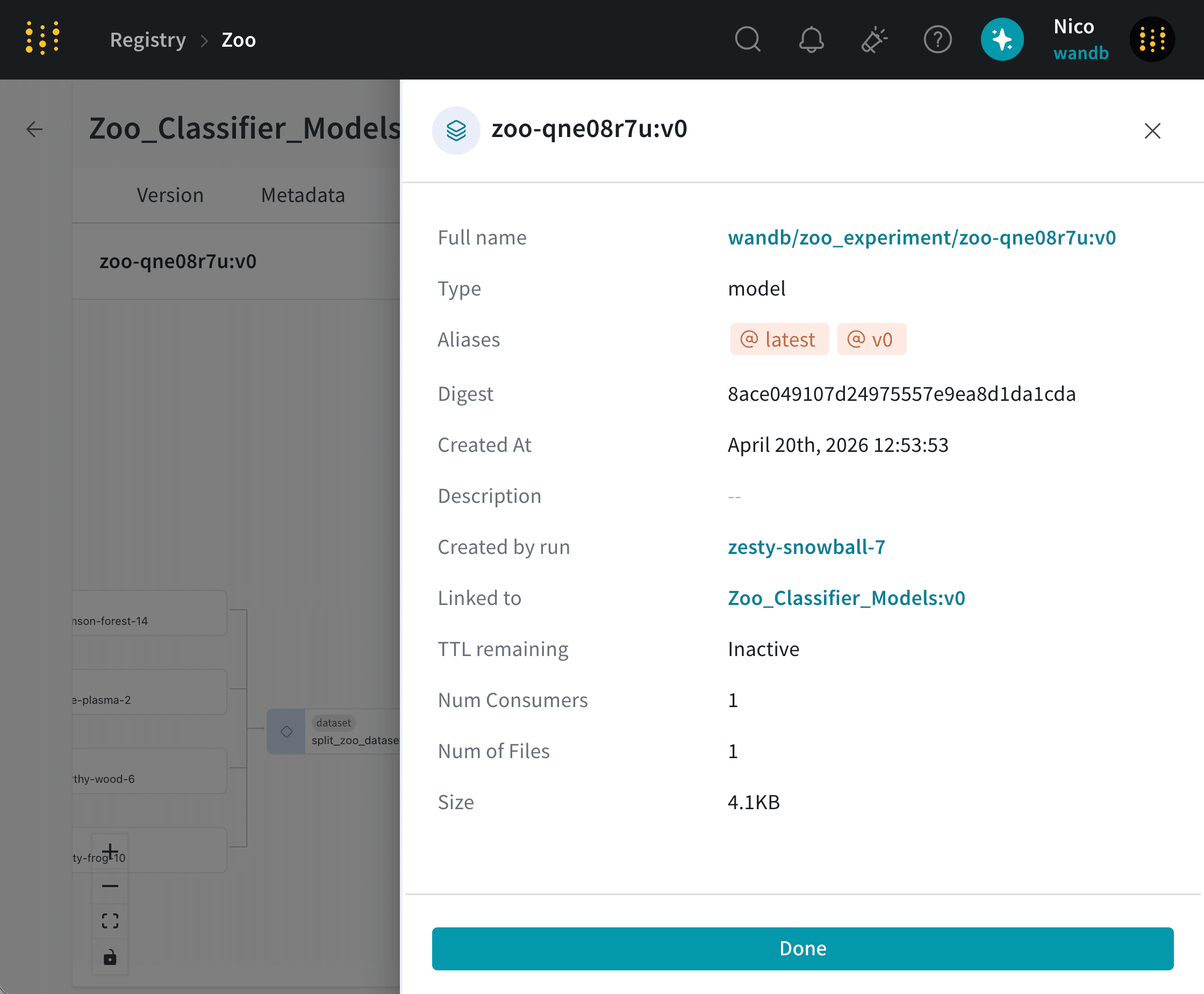
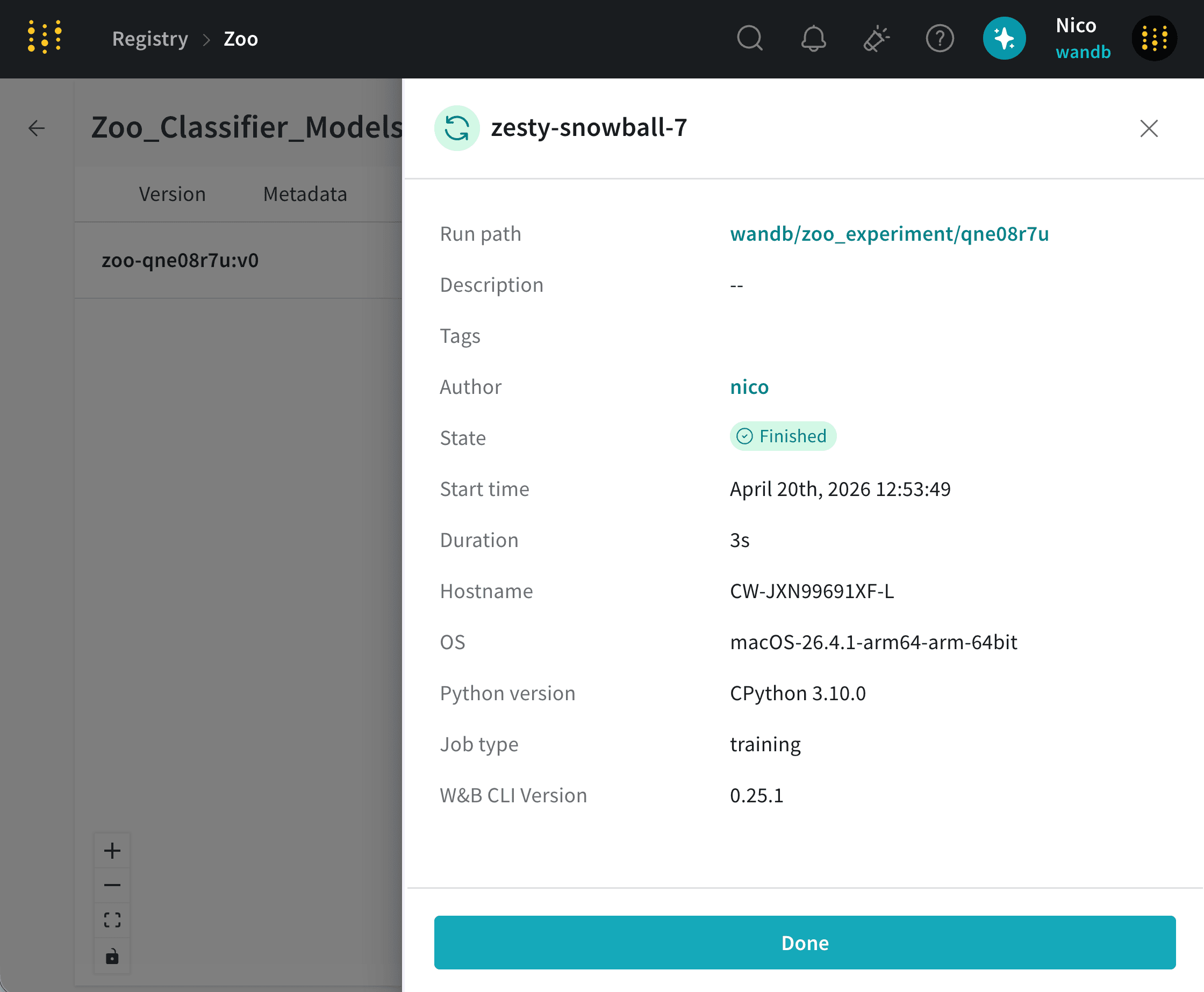 The following image shows the expanded detailed view of an artifact (`zoo-qne08r7u:v0`) when you select an artifact node in the lineage graph:
 You can also view lineage graphs for artifacts you log to W\&B that are not part of a collection. See [Explore artifact graphs](/models/artifacts/explore-and-traverse-an-artifact-graph) for more information.
### Create a custom view
Click **Custom** in the top-right corner of the lineage graph to create a custom view. You can filter and customize the lineage graph with the following options:
* **Filter by artifact type**: Filter by artifact type values logged to W\&B. For example, if you log an artifact with the type "dataset", then "dataset" is available as a filter value.
* **Filter by run job type**: Filter by run job type values logged to W\&B. For example, if you log a run with the job type "training", then "training" is available as a filter value.
* **Include extended lineage**: Display items that are not in the direct lineage for the base version.
* **Include generated artifacts**: Items created programmatically will show.
* **Expand clusters**: Similar items with similar connections will not be grouped together.
* **Downstream hops**: Descendant generations relative to the active node.
* **Upstream hops**: Ancestor generations relative to the active node.
To reset the lineage graph to its default view, click the backward arrow button.
## Audit a collection's history
View actions that members of your organization take on that collection. You can view:
* If an alias was added or removed from an artifact version.
* If an artifact version was added or removed from a collection.
For both actions, you can view the user that performed the action and the date the action occurred.
To view a collection's action history:
1. Navigate to the W\&B Registry.
2. Select the collection you want to view its action history.
3. Select the dropdown menu next to the collection name.
4. Select the **Action History** option.
You can also view lineage graphs for artifacts you log to W\&B that are not part of a collection. See [Explore artifact graphs](/models/artifacts/explore-and-traverse-an-artifact-graph) for more information.
### Create a custom view
Click **Custom** in the top-right corner of the lineage graph to create a custom view. You can filter and customize the lineage graph with the following options:
* **Filter by artifact type**: Filter by artifact type values logged to W\&B. For example, if you log an artifact with the type "dataset", then "dataset" is available as a filter value.
* **Filter by run job type**: Filter by run job type values logged to W\&B. For example, if you log a run with the job type "training", then "training" is available as a filter value.
* **Include extended lineage**: Display items that are not in the direct lineage for the base version.
* **Include generated artifacts**: Items created programmatically will show.
* **Expand clusters**: Similar items with similar connections will not be grouped together.
* **Downstream hops**: Descendant generations relative to the active node.
* **Upstream hops**: Ancestor generations relative to the active node.
To reset the lineage graph to its default view, click the backward arrow button.
## Audit a collection's history
View actions that members of your organization take on that collection. You can view:
* If an alias was added or removed from an artifact version.
* If an artifact version was added or removed from a collection.
For both actions, you can view the user that performed the action and the date the action occurred.
To view a collection's action history:
1. Navigate to the W\&B Registry.
2. Select the collection you want to view its action history.
3. Select the dropdown menu next to the collection name.
4. Select the **Action History** option.